Appendix#
Data and Editing Barcodes#
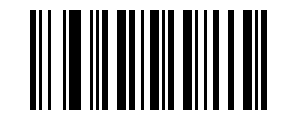
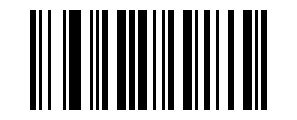
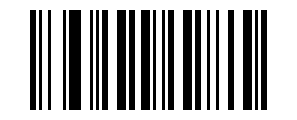
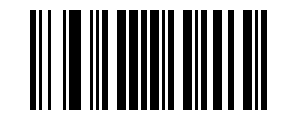
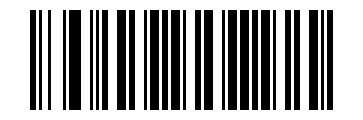
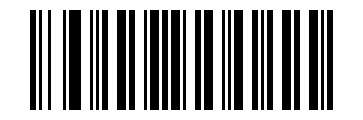
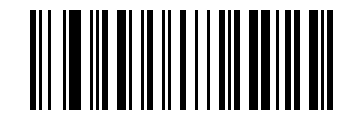
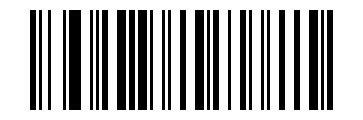
Barcode Type ID Table#
Symbology Type |
Hex Value |
Default Code ID |
|---|---|---|
All Symbologies |
99 |
|
Codabar |
61 |
a |
Code 128 |
6A |
j |
Code 32 |
3C |
< |
Code 93 |
69 |
i |
Code 39 |
62 |
b |
Code 11 |
48 |
H |
EAN-13 |
64 |
d |
EAN-8 |
64 |
d |
GS1 DataBar |
52 |
R |
GS1-128 (EAN-128) |
6A |
j |
2 of 5 |
||
Interleaved 2 of 5 |
65 |
e |
Matrix 2 of 5 |
76 |
v |
Industrial 2 of 5/IATA |
44 |
D |
UPC-A |
63 |
c |
UPC-E |
63 |
c |
ISBN |
42 |
B |
ISSN |
6E |
n |
MSI |
6D |
m |
Aztec Code |
7A |
z |
Data Matrix |
75 |
u |
PDF417 |
72 |
r |
MicroPDF417 |
53 |
S |
QR Code |
51 |
Q |
Micro QR |
51 |
Q |
AIM ID Table#
Symbology Type |
AIM ID |
Description |
|---|---|---|
Codabar |
]Fm |
m: 0~1 |
Code 128 |
]Cm |
m: 0, 1, 2, 4 |
Code 32 |
]A0 |
|
Code 93 |
]G0 |
|
Code 39 |
]Am |
m: 0, 1, 3, 4, 5, 7 |
Code 11 |
]Hm |
m: 0, 1, 3, 8, 9 |
EAN-13 / EAN-8 |
]Em |
m: 0, 1, 3, 4 |
GS1 DataBar |
]e0 |
|
GS1-128 (EAN-128) |
]C1 |
|
Interleaved 2 of 5 |
]Im |
m: 0, 1, 3 |
Matrix 2 of 5 |
]X0 |
|
Industrial 2 of 5/IATA |
]S0 |
|
UPC-A/ UPC-E |
]Em |
m: 0, 3 |
ISBN |
]X0 |
|
ISSN |
]X0 |
|
MSI |
]Mm |
m: 0, 1 |
Aztec Code |
]z0 |
|
Data Matrix |
]dm |
m: 0~6 |
PDF417 / MicroPDF417 |
]Lm |
m: 0~5 |
QR Code / Micro QR |
]Qm |
m: 0~6 |
Printable ASCII Table#
Decimal |
Hexadecimal |
Character |
Decimal |
Hexadecimal |
Character |
Decimal |
Hexadecimal |
Character |
|---|---|---|---|---|---|---|---|---|
32 |
20 |
64 |
40 |
@ |
96 |
60 |
` |
|
33 |
21 |
! |
65 |
41 |
A |
97 |
61 |
a |
34 |
22 |
“ |
66 |
42 |
B |
98 |
62 |
b |
35 |
23 |
# |
67 |
43 |
C |
99 |
63 |
c |
36 |
24 |
$ |
68 |
44 |
D |
100 |
64 |
d |
37 |
25 |
% |
69 |
45 |
E |
101 |
65 |
e |
38 |
26 |
& |
70 |
46 |
F |
102 |
66 |
f |
39 |
27 |
‘ |
71 |
47 |
G |
103 |
67 |
g |
40 |
28 |
( |
72 |
48 |
H |
104 |
68 |
h |
41 |
29 |
) |
73 |
49 |
I |
105 |
69 |
i |
42 |
2A |
* |
74 |
4A |
J |
106 |
6A |
j |
43 |
2B |
+ |
75 |
4B |
K |
107 |
6B |
k |
44 |
2C |
, |
76 |
4C |
L |
108 |
6C |
l |
45 |
2D |
- |
77 |
4D |
M |
109 |
6D |
m |
46 |
2E |
. |
78 |
4E |
N |
110 |
6E |
n |
47 |
2F |
/ |
79 |
4F |
O |
111 |
6F |
o |
48 |
30 |
0 |
80 |
50 |
P |
112 |
70 |
p |
49 |
31 |
1 |
81 |
51 |
Q |
113 |
71 |
q |
50 |
32 |
2 |
82 |
52 |
R |
114 |
72 |
r |
51 |
33 |
3 |
83 |
53 |
S |
115 |
73 |
s |
52 |
34 |
4 |
84 |
54 |
T |
116 |
74 |
t |
53 |
35 |
5 |
85 |
55 |
U |
117 |
75 |
u |
54 |
36 |
6 |
86 |
56 |
V |
118 |
76 |
v |
55 |
37 |
7 |
87 |
57 |
W |
119 |
77 |
w |
56 |
38 |
8 |
88 |
58 |
X |
120 |
78 |
x |
57 |
39 |
9 |
89 |
59 |
Y |
121 |
79 |
y |
58 |
3A |
: |
90 |
5A |
Z |
122 |
7A |
z |
59 |
3B |
; |
91 |
5B |
[ |
123 |
7B |
{ |
60 |
3C |
< |
92 |
5C |
\ |
124 |
7C |
| |
61 |
3D |
= |
93 |
5D |
] |
125 |
7D |
} |
62 |
3E |
> |
94 |
5E |
^ |
126 |
7E |
~ |
63 |
3F |
? |
95 |
5F |
_ |
Control Character Set (USB Keyboard Mode)#
Decimal |
Hexadecimal |
Corresponding Key Value (Control Character Escape Disabled) |
Corresponding Key Value (Control Character Escape 1) |
Corresponding Key Value (Control Character Escape 2) |
|---|---|---|---|---|
0 |
00 |
Reserved |
Ctrl+@ |
Ctrl+@ |
1 |
01 |
Insert |
Ctrl+A |
Ctrl+A |
2 |
02 |
Home |
Ctrl+B |
Ctrl+B |
3 |
03 |
End |
Ctrl+C |
Ctrl+C |
4 |
04 |
Delete |
Ctrl+D |
Ctrl+D |
5 |
05 |
PageUp |
Ctrl+E |
Ctrl+E |
6 |
06 |
PageDown |
Ctrl+F |
Ctrl+F |
7 |
07 |
ESC |
Ctrl+G |
Ctrl+G |
8 |
08 |
Backspace |
Ctrl+H |
Backspace |
9 |
09 |
Tab |
Ctrl+I |
Tab |
10 |
0A |
Enter (Behavior depends on the CR/LF handling setting) |
Ctrl+J |
Enter |
11 |
0B |
Caps Lock |
Ctrl+K |
Ctrl+K |
12 |
0C |
Print Screen |
Ctrl+L |
Ctrl+L |
13 |
0D |
Enter (Behavior depends on the CR/LF handling setting) |
Ctrl+M |
Enter |
14 |
0E |
Scroll Lock |
Ctrl+N |
Ctrl+N |
15 |
0F |
Pause/Break |
Ctrl+O |
Ctrl+O |
16 |
10 |
F11 |
Ctrl+P |
Ctrl+P |
17 |
11 |
Arrow Key Up |
Ctrl+Q |
Ctrl+Q |
18 |
12 |
Arrow Key Down |
Ctrl+R |
Ctrl+R |
19 |
13 |
Arrow Key Left |
Ctrl+S |
Ctrl+S |
20 |
14 |
Arrow Key Right |
Ctrl+T |
Ctrl+T |
21 |
15 |
F12 |
Ctrl+U |
Ctrl+U |
22 |
16 |
F1 |
Ctrl+V |
Ctrl+V |
23 |
17 |
F2 |
Ctrl+W |
Ctrl+W |
24 |
18 |
F3 |
Ctrl+X |
Ctrl+X |
25 |
19 |
F4 |
Ctrl+Y |
Ctrl+Y |
26 |
1A |
F5 |
Ctrl+Z |
Ctrl+Z |
27 |
1B |
F6 |
Ctrl+[ |
Ctrl+[ |
28 |
1C |
F7 |
Ctrl+\ |
Ctrl+\ |
29 |
1D |
F8 |
Ctrl+] |
Ctrl+] |
30 |
1E |
F9 |
Ctrl+^ |
Ctrl+^ |
31 |
1F |
F10 |
Ctrl+_ |
Ctrl+_ |
Control Character Set (Serial Port and USB Virtual COM Port)#
Decimal |
Hexadecimal |
Corresponding Character |
|---|---|---|
0 |
00 |
NUL |
1 |
01 |
SOH |
2 |
02 |
STX |
3 |
03 |
ETX |
4 |
04 |
EOT |
5 |
05 |
ENQ |
6 |
06 |
ACK |
7 |
07 |
BEL |
8 |
08 |
BS |
9 |
09 |
HT |
10 |
0A |
LF |
11 |
0B |
VT |
12 |
0C |
FF |
13 |
0D |
CR |
14 |
0E |
SO |
15 |
0F |
SI |
16 |
10 |
DLE |
17 |
11 |
DC1 |
18 |
12 |
DC2 |
19 |
13 |
DC3 |
20 |
14 |
DC4 |
21 |
15 |
NAK |
22 |
16 |
SYN |
23 |
17 |
ETB |
24 |
18 |
CAN |
25 |
19 |
EM |
26 |
1A |
SUB |
27 |
1B |
ESC |
28 |
1C |
FS |
29 |
1D |
GS |
30 |
1E |
RS |
31 |
1F |
US |
Configuration Notes and Examples for Selected Functions#
Custom Prefix/Suffix Configuration Examples#
Note
Scan barcodes to configure barcode prefixes and suffixes. Each prefix or suffix can contain up to 10 characters. (To ensure custom prefixes and suffixes can be output, enable the custom prefix/suffix output option on the scanner.)
Example 1.1: Add the custom prefix XYZ to all barcode types
Look up Barcode Type ID Table: the hexadecimal value for all symbologies is 99. Look up Printable ASCII Table: the hexadecimal values for XYZ are 58,59,5A.
Scan the “Custom Prefix” setting barcode. The scanner will emit two beep tones.
Scan
9,9,5,8,5,9,5, andAin Data and Editing Barcodes in sequence.Scan the “Save” setting barcode.
Note
If you need to modify the scanned data before saving, scan Cancel the Last Scanned Data or Cancel the Previously Scanned Data String to reconfigure it. To abandon the current configuration midway, scan Cancel Current Setting directly.
Example 1.2: Add the custom prefix R to QR Code
Look up Barcode Type ID Table: the hexadecimal value for QR Code is 51. Look up Printable ASCII Table: the hexadecimal value for R is 52.
Scan the “Custom Prefix” setting barcode.
Scan
5,1,5, and2in Data and Editing Barcodes in sequence.Scan the “Save” setting barcode.
Example 1.3: Clear the custom prefix for QR Code
When configuring custom prefixes/suffixes, saving the barcode type characters without adding other characters clears the custom prefix/suffix for that barcode type.
Scan the “Custom Prefix” setting barcode.
Scan
5and1in Data and Editing Barcodes in sequence.Scan the “Save” setting barcode.
Note
If a prefix was previously configured for all barcodes, the QR Code prefix will revert to that all-barcode prefix after configuration.
To clear prefixes and suffixes configured for various barcode types, scan the Clear All Custom Prefixes and Clear All Custom Suffixes setting barcodes.
Barcode Length Limit Configuration Examples#
Important
When configuring the minimum barcode length, the configured minimum value must not be greater than the current maximum length, otherwise an error is prompted. Likewise, when configuring the maximum barcode length, the configured maximum value must not be less than the current minimum length.
Example 2.1: Set the Code 128 barcode length to 4-12 digits
Scan the “Code 128 Minimum Length Limit” setting barcode.
Scan
4in Data and Editing Barcodes in sequence.Scan the “Save” setting barcode.
Scan the “Code 128 Maximum Length Limit” setting barcode.
Scan
1and2in Data and Editing Barcodes in sequence.Scan the “Save” setting barcode.
Example 2.2: Set the Interleaved 2 of 5 barcode length to 14 digits
To set the Interleaved 2 of 5 barcode length to 14 digits, you can scan the quick setting barcode ITF25 14-Digit Length directly, or configure it through the minimum and maximum barcode lengths:
Scan the “Interleaved 2 of 5 Minimum Length Limit” setting barcode.
Scan
1and4in Data and Editing Barcodes in sequence.Scan the “Save” setting barcode.
Scan the “Interleaved 2 of 5 Maximum Length Limit” setting barcode.
Scan
1and4in Data and Editing Barcodes in sequence.Scan the “Save” setting barcode.
Example 2.3: Set the Code 39 barcode length to any supported length
Scan the “Code 39 Minimum Length Limit” setting barcode.
Scan
0in Data and Editing Barcodes in sequence.Scan the “Save” setting barcode.
Scan the “Code 39 Maximum Length Limit” setting barcode.
Scan
0in Data and Editing Barcodes in sequence.Scan the “Save” setting barcode.
USB Keyboard Output Speed Configuration Example#
If the host performance is weak and transmission errors are likely to occur, customize the USB keyboard output speed to a slower value, such as 50 ms:
Scan the “Custom Output Speed” setting barcode.
Scan
5and0in Data and Editing Barcodes in sequence.Scan the “Save” setting barcode.
Custom Decode Beep Frequency#
Set the decode beep frequency to 2K:
Scan the “Custom Decode Beep Frequency” setting barcode. The scanner will emit two beep tones.
Scan
2,0,0, and0in Data and Editing Barcodes in sequence.Scan the “Save” setting barcode.
Warning Beep#
When data transmission is abnormal, the scanner emits four consecutive warning beeps. If this occurs, check whether the connection cable is normal.
Tip
The following methods can help improve decoding success. For best results, aim the scanner beam at the center of the barcode, although the barcode can be read from any orientation.
Hold the scanner in front of the barcode, press the button, and aim the targeting beam at the center of the barcode.
The closer the scanner is to the barcode, the smaller the aiming beam becomes; the farther away it is, the larger the beam becomes. For small barcodes, hold the scanner closer. For larger barcodes, move the scanner slightly farther away for easier decoding.
If the barcode has high reflectivity (for example, a coated surface), you may need to tilt the scanner at a certain angle to scan it successfully.
Safety#
Safety#
Safety Notice#
Warning
The illumination light is bright during scanner operation. Do not stare directly into it or point it at the eyes to avoid discomfort or injury.