Transfer data using TCP server#
Note
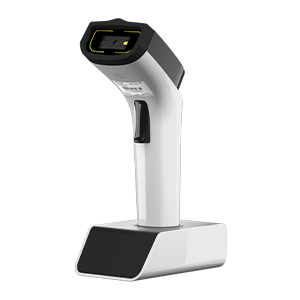
Only applicable to scanners that support Wi-Fi transmission, such as DS2800.
Quick configuration#
Note
Use this tool to generate configuration code when you use third-party software to build a TCP client.
Demo software#
Click the link below to download the demo software: Netum Wi-Fi TCP Client
Connect#
Download the demo software and extract it to a local directory.
Open the demo software, enter the Wi‑Fi information that the scanner needs to connect to, the IP address of the scanner and the TCP server port, and then use the scanner to scan the QR code below.
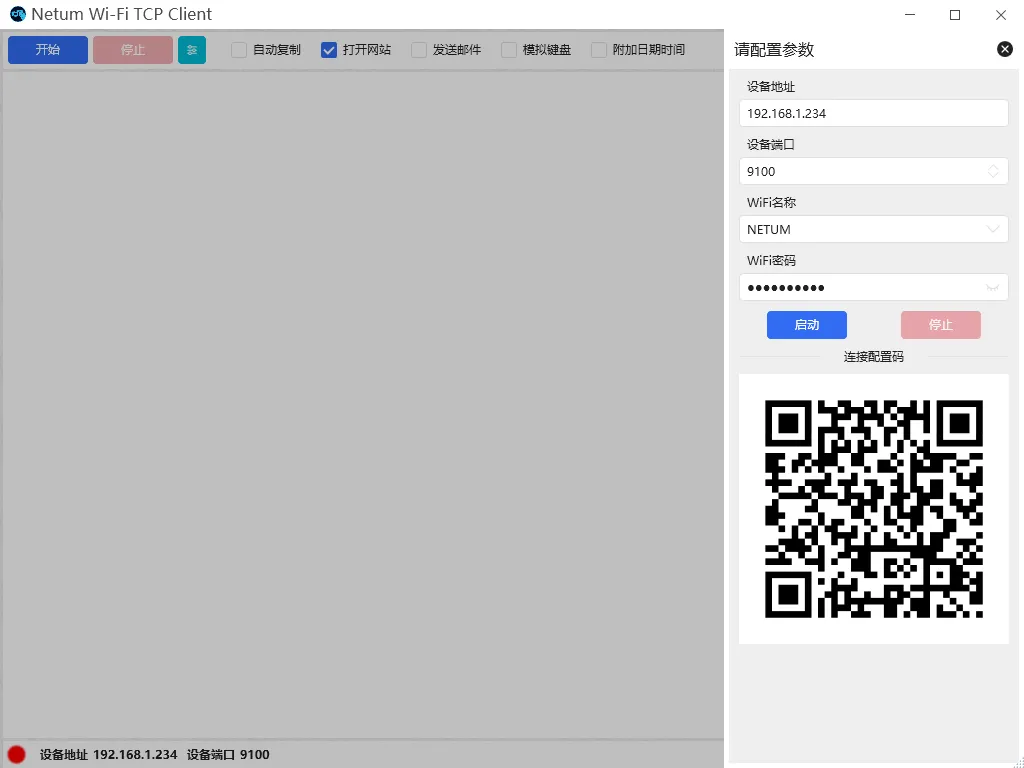
TCP client configuration QR code example#
Click the start button, or start the TCP client through the program to connect to the scanner.
After the software establishes a connection with the scanner, the indicator light on the scanner will stay on.
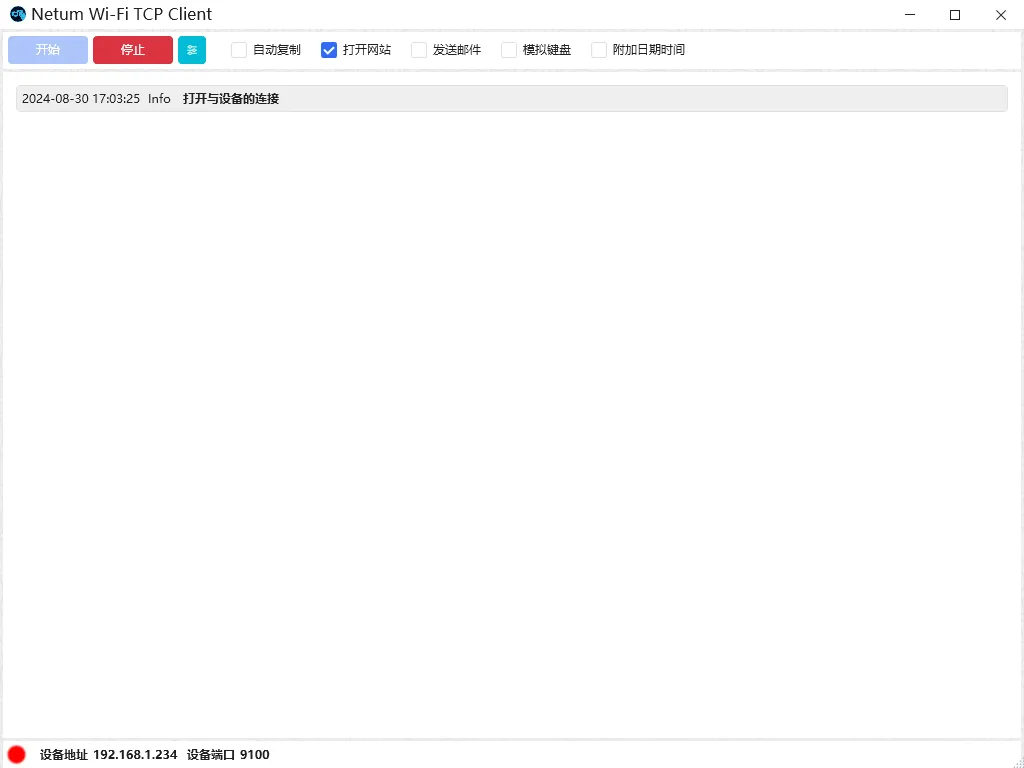
TCP client connection example#
Note
Device address: The IP address of the scanner in the LAN.Device port: TCP service port opened by the scanner.