Data Editing#
Decoded Data Packet Format#
This parameter selects whether decoded data is transmitted in raw (unwrapped) format or in the packet format defined by the serial protocol. If raw format is selected, ACK/NAK handshaking cannot be used for decoded data.

* Send Raw Decoded Data#

Send Packetized Decoded Data#
Transport code ID characters#
- Parameter number
0x2D- Default
None
Code ID characters identify the barcode type. When the device may decode multiple barcode types, Code ID or AIM ID can be inserted between the prefix characters and the decoded data. See Code ID for Code ID characters and AIM code identifier for AIM ID characters.

Code ID#

AIM ID#

* None#
Terminator settings#
The end character is a character format added after the decoded data: decoded data + end character.
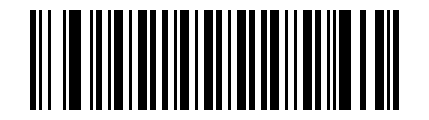
* Disable#

Carriage return and line feed CR LF#

Carriage Return CR#

TAB#

Enter Enter Enter CR CR#
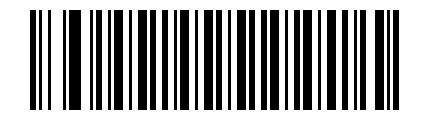
Carriage return and line feed Carriage return and line feed CR LF CR LF#
Prefix/Suffix#
Prefix/Suffix Values#
Prefixes and suffixes can be appended to decoded data. To set a character value, look up the ASCII value in Character Reference Table and scan the corresponding 4-digit numeric setting barcode. Numeric setting barcodes are listed in Numeric Setup Codes.
To change the selection or cancel an incorrect entry, scan Cancel Barcode. When setting prefix/suffix values through serial commands, refer to the corresponding serial command description.

Prefix#

Suffix 1#

Suffix 2#

Clear Data Format#
Note
To make prefix/suffix values take effect, the corresponding data transmission format must be set.
Continuous Multiple Prefix/Suffix Setup Mode#
Continuous setup mode is used to configure multiple prefixes or suffixes at one time. Set the prefix/suffix values first, then set the data transmission format.
Continuous Multiple Prefix Setup#
By default, 1 prefix is supported, with a maximum of 10 prefixes. After scanning the corresponding setting barcode to enter continuous setup mode, scan the 4-digit numeric setting barcode for each prefix character according to the character table. The process ends automatically after 10 prefixes, or you can scan “Finish Continuous Prefix/Suffix Setup” to complete it earlier.
Note
Multiple prefixes take effect only with the “Multiple Prefixes + Data” or “Multiple Prefixes + Data + Multiple Suffixes” data transmission format.
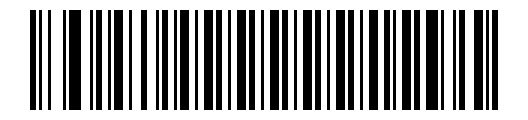
Continuous Multiple Prefix Setup#

Quick multiple-prefix example: AB (ASCII values: 0x41 and 0x42)#
Continuous Multiple Suffix Setup#
By default, 2 suffixes are supported, with a maximum of 10 suffixes. After scanning the corresponding setting barcode to enter continuous setup mode, scan the 4-digit numeric setting barcode for each suffix character according to the character table. The process ends automatically after 10 suffixes, or you can scan “Finish Continuous Prefix/Suffix Setup” to complete it earlier.
Note
Multiple suffixes take effect only with the “Data + Multiple Suffixes” or “Multiple Prefixes + Data + Multiple Suffixes” data transmission format.
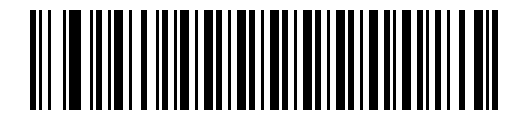
Continuous Multiple Suffix Setup#

Quick multiple-suffix example: AB (ASCII values: 0x41 and 0x42)#
Finish or Exit Setup#
Scan “Finish Continuous Multiple Prefix/Suffix Setup” or “Exit Prefix/Suffix Setup” to save the currently configured prefixes or suffixes and exit continuous setup mode.
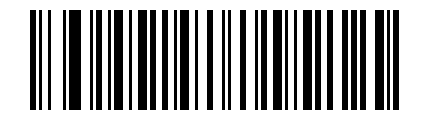
Finish Continuous Multiple Prefix/Suffix Setup#
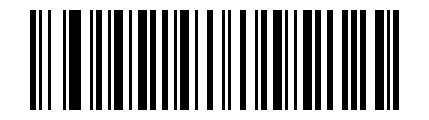
Exit Prefix/Suffix Setup#
Data Transmission Format#
Scan the corresponding barcodes below to set the desired data transmission format. Each time a prefix or suffix is configured, scan the corresponding data transmission format again to make that prefix or suffix take effect. For example, if the original format is “Data + Suffix 1”, after setting a prefix you must scan “Prefix + Data” or “Prefix + Data + Suffix” to enable the prefix.

* Raw Data#
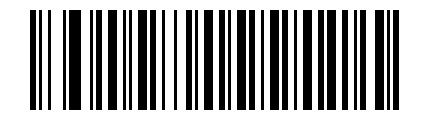
Data + Suffix 1#

Data + Suffix 2#

Data + Suffix 1 + Suffix 2#

Prefix + Data#

Prefix + Data + Suffix 1#

Prefix + Data + Suffix 2#
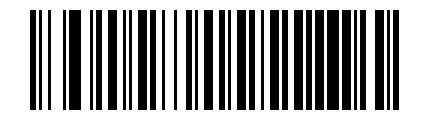
Prefix + Data + Suffix 1 + Suffix 2#

Data + Multiple Suffixes#

Multiple Prefixes + Data#

Multiple Prefixes + Data + Multiple Suffixes#
STX and ETX Settings#
* Disable#
STX (Prefix)#

ETX (Suffix 1)#

STX (Prefix) + ETX (Suffix 1)#
Suffix Modifier-Key Function#
This feature applies when the communication mode is USB KBW. You can set one or more modifier-key functions. For example, to use Ctrl+Shift, enable both the Suffix Ctrl modifier-key function and the Suffix Shift modifier-key function.
Suffix Alt Modifier-Key Function

* Disable#
Enable#
Suffix Ctrl Modifier-Key Function

* Disable#
Enable#
Suffix Shift Modifier-Key Function

* Disable#

Enable#
Suffixes and terminators are not affected by the ASCII control-character output mode.#

* Disable#

Enable#
Set Prefix/Suffix by Barcode Type#
Prefixes and suffixes can be set or cleared separately for a specified barcode type. To configure them, first scan the function setting barcode, then enter the barcode type index and the character values to be set.
Set Prefix#
Scan the “Set Prefix by Barcode Type” setting barcode.
According to the barcode type index and Character Reference Table, scan the corresponding numeric setting barcodes. For example, for the QR Code type index
0xF1, scan1,2,4, and1.Scan the prefix character to be set. For example, if the prefix is the digit
1, scan1049(0x31).Scan “Exit Prefix/Suffix Setup” to finish the configuration.

Set Prefix by Barcode Type#
Set Suffix#
The steps for setting a suffix are the same as for setting a prefix: scan the following setting barcode first, then enter the barcode type index and suffix character values.

Set Suffix by Barcode Type#
Clear Prefix/Suffix#
To clear the prefix or suffix for a specified barcode type, first scan the corresponding clear setting barcode, then enter the barcode type index. For QR Code, for example, after entering the numeric setting barcodes corresponding to 0xF1, the QR Code prefix information is cleared.
Note
To clear prefixes for all barcode types, scan 1, 2, 5, and 5 (0xFF).

Clear Prefix by Barcode Type#
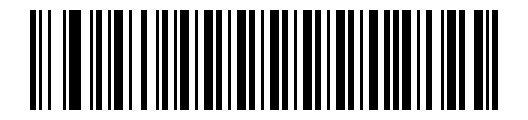
Clear Suffix by Barcode Type#
Prefix/Suffix Toggle#
Scan the barcodes below to set the desired data transmission format.

* No Prefix or Suffix (Raw Data)#
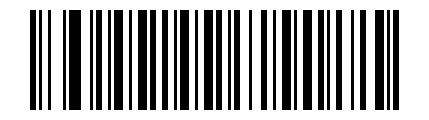
Add Prefix (Prefix + Data)#

Add Suffix (Data + Suffix)#

Add Prefix and Suffix (Prefix + Data + Suffix)#
Custom Barcode Data Hiding#
Hide Leading Data#
Hide a specified number of leading characters from the decoded output. If the configured length exceeds the barcode data length, the entire barcode content is hidden.
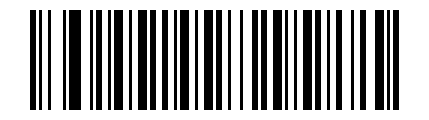
* Disable#

Enable#
Set Leading Hidden Data Length#
After scanning the following setting barcode, scan a 3-digit numeric setting barcode to enter the hidden length; pad with leading 0 if fewer than 3 digits are entered.
- Range
1-255
Example
To hide 16 leading characters, scan this setting barcode and then scan the numeric setting barcodes 0, 1, and 6 in order.

Set Leading Hidden Data Length#
Hide Middle Data#
Hide a specified number of characters in the middle of the decoded output. If the start position exceeds the barcode data length, no data is hidden. If the configured length exceeds the remaining barcode data length, all data after the start position is hidden.

* Disable#
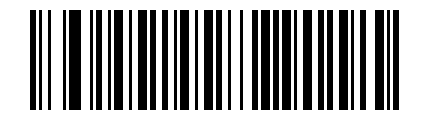
Enable#
Set Middle Hidden Data Start Position#
After scanning the following setting barcode, scan a 3-digit numeric setting barcode to enter the start position; pad with leading 0 if fewer than 3 digits are entered.
- Range
1-255

Set Middle Hidden Data Start Position#
Set Middle Hidden Data Length#
After scanning the following setting barcode, scan a 3-digit numeric setting barcode to enter the hidden length; pad with leading 0 if fewer than 3 digits are entered.
- Range
1-255
Example
To hide 16 middle characters, scan this setting barcode and then scan the numeric setting barcodes 0, 1, and 6 in order.

Set Middle Hidden Data Length#
Hide Trailing Data#
Hide a specified number of trailing characters from the decoded output. If the configured length exceeds the barcode data length, the entire barcode content is hidden.
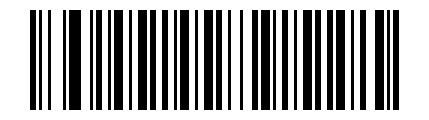
* Disable#
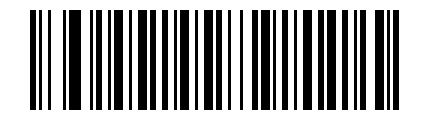
Enable#
Set Trailing Hidden Data Length#
After scanning the following setting barcode, scan a 3-digit numeric setting barcode to enter the hidden length; pad with leading 0 if fewer than 3 digits are entered.
- Range
1-255
Example
To hide 16 trailing characters, scan this setting barcode and then scan the numeric setting barcodes 0, 1, and 6 in order.
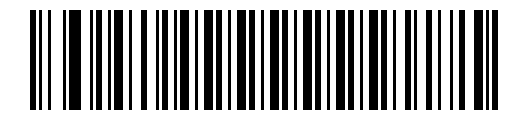
Set Trailing Hidden Data Length#
Custom Barcode Data Retention#
Retain Leading Data#
Retain only a specified number of leading characters from the decoded output. If the configured length exceeds the barcode data length, the entire barcode content is retained.

* Disable#
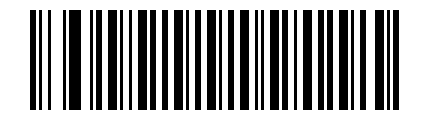
Enable#
Set Leading Retained Data Length#
After scanning the following setting barcode, scan numeric setting barcodes to enter the retained length.
- Range
1-65535
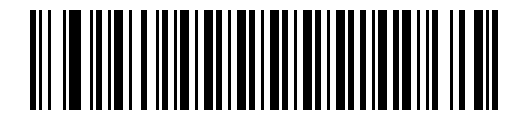
Set Leading Retained Data Length#
Quick Setup for Leading Retained Data Length#
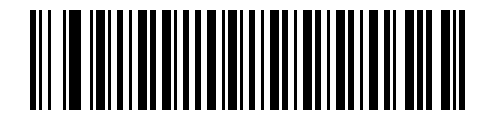
Retain 1 Leading Byte#
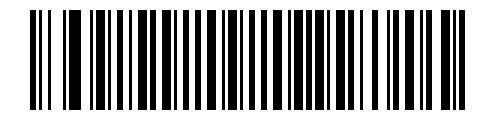
Retain 9999 Leading Bytes#

Retain 65535 Leading Bytes#
Retain Middle Data#
Retain only a specified number of characters in the middle of the decoded output. If the start position exceeds the barcode data length, no data is retained (no output). If the configured length exceeds the remaining barcode data length, all data after the start position is retained.
Example
If the barcode data is 12345ABC, when the start position is 5 and the length is 2, the output is AB.
If the barcode data is 12345ABC, when the start position is 5 and the length is 5, the output is ABC.

* Disable#

Enable#
Set Middle Retained Data Start Position#
After scanning the following setting barcode, scan numeric setting barcodes to enter the start position.
- Range
1-65535

Set Middle Retained Data Start Position#
Quick Setup for Middle Retained Data Start Position#
You can use the barcode generation tool to create a custom start-position setting barcode.
- Range
1-65535(0x0001-0xFFFF)- Format
80829XXXX, whereXXXXis a 4-digit uppercase hexadecimal value.
Example
To begin retaining data after byte 15, the setting barcode value is 80829000F.

Retain Data After Byte 1#

Retain Data After Byte 9999#

Retain Data After Byte 65535#
Set Middle Retained Data Length#
After scanning the following setting barcode, scan numeric setting barcodes to enter the retained length.
- Range
1-65535
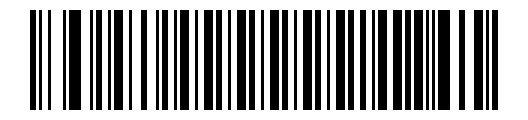
Set Middle Retained Data Length#
Quick Setup for Middle Retained Data Length#
You can use the barcode generation tool to create a custom retained-length setting barcode.
- Range
1-65535(0x0001-0xFFFF)- Format
8082AXXXX, whereXXXXis a 4-digit uppercase hexadecimal value.
Example
To retain 15 bytes after the start position, the setting barcode value is 8082A000F.

Retain 1 Byte After the Start Position#

Retain 9999 Bytes After the Start Position#

Retain 65535 Bytes After the Start Position#
Retain Trailing Data#
Retain only a specified number of trailing characters from the decoded output. If the configured length exceeds the barcode data length, the entire barcode content is retained.
Example
If the barcode data is 12345ABC, retaining the last 3 bytes outputs ABC.
If the barcode data is 12345ABC, retaining the last 5 bytes outputs 45ABC.

* Disable#

Enable#
Set Trailing Retained Data Length#
After scanning the following setting barcode, scan numeric setting barcodes to enter the retained length.
- Range
1-65535

Set Trailing Retained Data Length#
Quick Setup for Trailing Retained Data Length#

Retain 1 Trailing Byte#

Retain 9999 Trailing Bytes#

Retain 65535 Trailing Bytes#
Hide Custom Data Strings in Barcodes#
Toggle#
You can configure 1 to 32 bytes of custom hidden data. All matching data strings in the barcode are hidden before output.

* Disable#
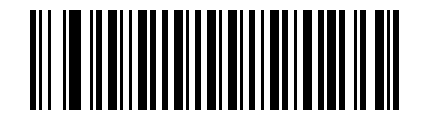
Enable#
Set Hidden Data String#
After scanning “Set Hidden Data”, scan numeric setting barcodes in groups of 4 digits. For character values, refer to Character Reference Table. For example, to hide carriage return 0x0D, scan 1013; to hide carriage return + line feed 0x0D 0x0A, scan 1013 and 1010 in order.
Whether the operation succeeds or fails, after scanning this barcode you must scan “Finish Setup” to exit the continuous data-setup state.

Set Hidden Data#
Finish Setup#
After hidden-data configuration is complete, scan this barcode to save the setting. Up to 32 bytes are supported. The process exits automatically and saves the configured content when 32 bytes are reached.
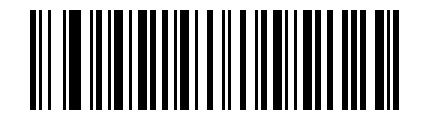
Finish Setup#
Read Back and Clear#
Incorrect entries may occur during setup. Use the read-back function to confirm the currently configured data. Read-back does not interrupt the current setup session, and you can continue setting the next character afterward.
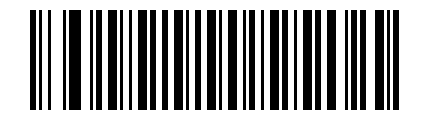
Read Back Configured Content#

Clear Configured Content#
Insert Custom Data#
Custom data can be inserted at any position in the barcode, with up to 10 bytes supported.
Enable/Disable Insert Custom Data#
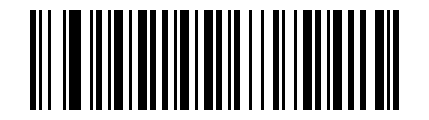
* Disable Insert Custom Data#

Enable Insert Custom Data#
Set Insert-Data Position#
After scanning the “Set Insert-Data Position” setting barcode, scan a 4-digit numeric setting barcode. If fewer than 4 digits are entered, pad with leading 0. For example, to insert after the 3rd character, scan 0, 0, 0, and 3.
When the position is 0, the data is inserted at the beginning of the decoded data. When the position is greater than the decoded data length, the data is inserted at the end. Supported positions range from 0 to 5000.
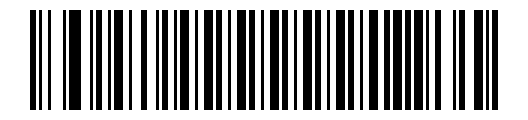
Set Insert-Data Position#
Set Data to Insert#
After scanning “Set Data to Insert”, scan the 4-digit numeric setting barcode for each character continuously according to Character Reference Table. For example, to insert QR, scan 1081 and 1082 in order. Up to 10 bytes are supported, and the process exits automatically after 10 bytes.
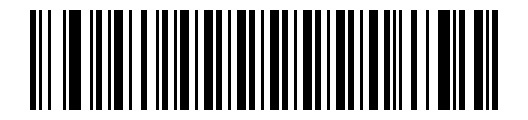
Set Data to Insert#
Exit Custom Data Setup#
To finish early, scan the following setting barcode to exit and save the currently configured data.
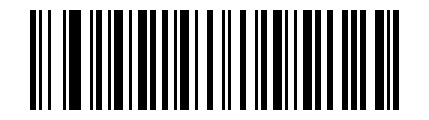
Exit Custom Data Setup#
Replace-Data Setup Instructions#
The replace function is completed in three steps: first set the target to be replaced, then set the replacement data, and finally enable replacement. Both the target and the replacement data support up to 32 bytes.
Set Replacement Target and Replacement Data#
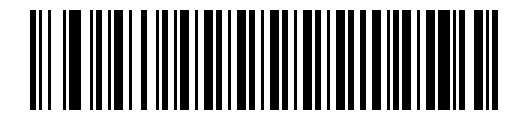
Set Replacement Target#

Set Replacement Data#
If fewer than 32 bytes are entered, scan “Finish Setup” to save. When 32 bytes are reached, the process exits automatically and saves the configuration.
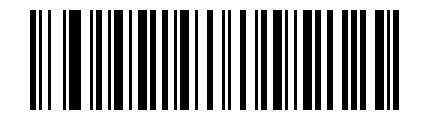
Finish Setup#
Enable/Disable Replacement#
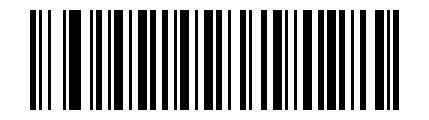
Enable Replacement#

Disable Replacement#
Read Back and Clear Replacement Data#

Read Back “Replacement Target”#
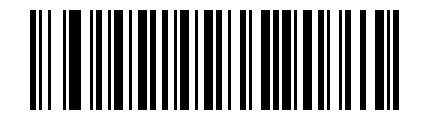
Read Back “Replacement Data”#

Clear “Replacement Target”#

Clear “Replacement Data”#
Example: Replace XY with AB#
In the following example, the scan values for X, Y, A, and B are entered according to the character table. X is 1088, Y is 1089, A is 1065, and B is 1066.
1. Set the replacement target to XY#
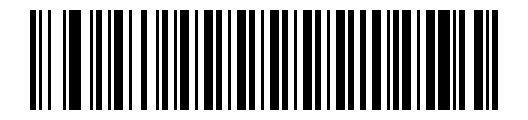
Scan “Set Replacement Target”#
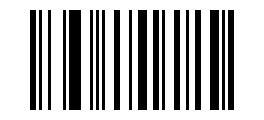
Numeric Setup Code 1#
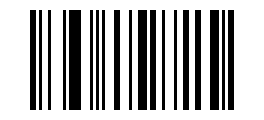
Numeric Setup Code 0#

Numeric Setup Code 8#

Numeric Setup Code 8#
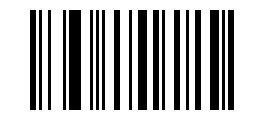
Numeric Setup Code 1#
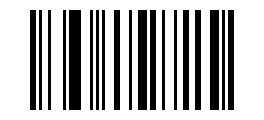
Numeric Setup Code 0#

Numeric Setup Code 8#
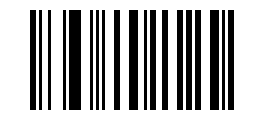
Numeric Setup Code 9#
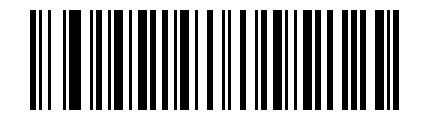
Finish Setup#
2. Set the replacement data to AB#

Scan “Set Replacement Data”#
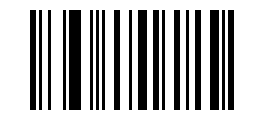
Numeric Setup Code 1#
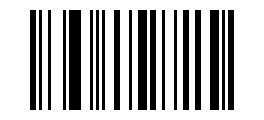
Numeric Setup Code 0#

Numeric Setup Code 6#

Numeric Setup Code 5#
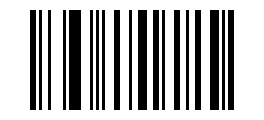
Numeric Setup Code 1#
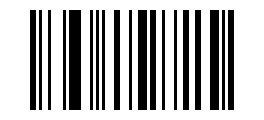
Numeric Setup Code 0#

Numeric Setup Code 6#

Numeric Setup Code 6#
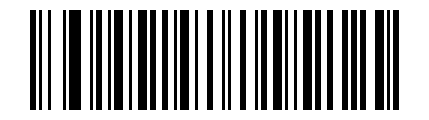
Finish Setup#
3. Enable replacement and verify the result#
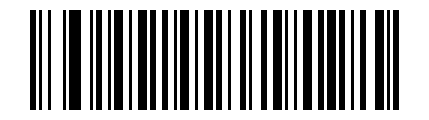
Enable Replacement#

Disable Replacement#
If the example barcode content is 0123XY45YX6YXY89, replacing XY with AB outputs 0123AB45YX6YAB89.
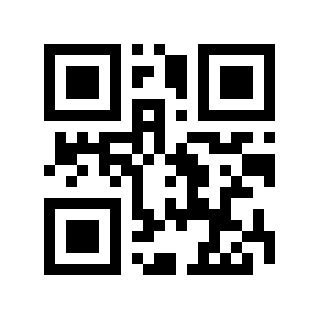
Example Result: Before Replacement#
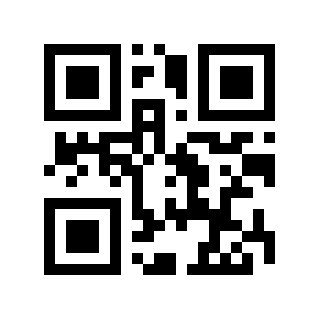
Example Result: After Replacement#
Serial Command Setup#
Set the replacement target data: 0xF3 0x25 + target byte 1 + target byte 2 + ... + target byte n. Up to 32 bytes are supported. For character values, refer to Character Reference Table.
Set the replacement data: 0xF3 0x26 + replacement byte 1 + replacement byte 2 + ... + replacement byte n. Up to 32 bytes are supported. For character values, refer to Character Reference Table.
Operation |
Command |
|---|---|
Finish Setup |
|
Disable Replacement |
|
Enable Replacement |
|
Read Back Replacement Target |
|
Read Back Replacement Data |
|
Example Commands:
Target |
Command |
|---|---|
Set Replacement Target to |
|
Set Replacement Data to |
|
Enable Replacement |
|
Replace |
|
Support for GS1 rules using brackets to include AI fields#
Currently supporting GS1 rules, the supported AI segments are: (00) Transport container serial number, (01) Commodity transaction item, (02) Commodity transaction item, (10) Batch number, (11) Production date, (13) Packaging date, (15) Best date, (17) Expiration date, (21) Serial number, (30) Quantity, (240) Internal code, (712) National medical insurance reimbursement number - Spain CN, (8012) software version, (90) consistent information between trading partners

* Disable#

Enable#
Convert to Hex#
Hex Output#

* Disable#

Uppercase Hex#

Lowercase Hex#
Hex Output Separator#

* Disable Separator#

Space#
Code ID#
Barcode Type |
Code ID |
|---|---|
Code 128 |
D |
GS1-128(UCC/EAN-128) |
K |
AIM 128 |
D |
ISBT-128 |
D |
EAN-8 |
A |
EAN-13 |
A |
ISSN |
L |
ISBN/Bookland EAN |
L |
UPC-E |
A |
UPC-A |
A |
Interleaved 2 of 5/ITF |
F |
ITF-14 |
F |
Deutsche Post 14 |
w |
Deutsche Post 12 |
l |
NEC-25(COOP 2 of 5) |
o |
Matrix 2 of 5 |
V |
Industrial 2 of 5/Discrete 2 of 5/IND25 |
G |
Standard 2 of 5 (IATA 25) |
G |
Code 39 |
B |
Code 93 |
E |
Codabar |
C |
Code 11 |
H |
Plessey |
J |
MSI-Plessey |
J |
GS1-DataBar( RSS) |
R |
PDF417 |
r |
QR |
q |
AZTEC(Aztec Code) |
a |
Data Matrix (DM) |
u |
MaxiCode |
x |
Han Xin Code/Han Xin Code |
c |
Code 32 |
B |
Trioptic Code 39 |
M |
Coupon Code |
N |
GS1 DataBar-14 |
R |
GS1 DataBar Limited |
R |
GS1 DataBar Expanded |
R |
SETUP128 |
S |
Veri Code |
v |
AIM code identifier#
Barcode Type |
AIM ID |
Description |
|---|---|---|
Code 128 |
]C0 |
Normal data |
GS1-128(UCC/EAN-128) |
]C1 |
FNC1 is at the 1st code word position. |
AIM 128 |
]C2 |
FNC1 is at the 2nd code word position. |
ISBT-128 |
]C0 |
|
EAN-8 |
]E4 |
Normal data |
]E4…]E1… |
EAN-8 data plus a 2-digit additional code. |
|
]E4…]E2… |
EAN-8 data plus a 5-digit additional code. |
|
EAN-13 |
]E0 |
Normal data |
]E3 |
EAN-13 data plus 2/5 digit additional code. |
|
ISSN |
]X0 |
Normal data |
ISBN/Bookland EAN |
]X0 |
Normal data |
UPC-E |
]E0 |
Normal data |
]E3 |
UPC-E data plus a 2/5-digit add-on code. |
|
UPC-A |
]E0 |
Ordinary data. |
]E3 |
UPC-A data plus a 2/5-digit add-on code. |
|
Interleaved 2 of 5/ITF |
]I0 |
Normal data |
]I1 |
Verify and output check characters. |
|
]I3 |
Verify but do not output the check character. |
|
ITF-14 |
]I1 |
Output check characters. |
]I3 |
Check characters are not output. |
|
Deutsche Post 14 |
]X0 |
Normal data |
Deutsche Post 12 |
]X0 |
Normal data |
NEC-25(COOP 2 of 5) |
]X0 |
Normal data |
Matrix 2 of 5 |
]X0 |
Normal data |
Industrial 2 of 5/ Discrete 2 of 5/IND25 |
]S0 |
Normal data |
Standard 2 of 5 (IATA 25) |
]R0 |
Normal data |
Code 39 |
]A0 |
No parity, no Full ASCII extension, data output as it is. |
]A1 |
MOD43 check and output check characters. |
|
]A3 |
MOD43 checks, but does not output check characters. |
|
]A4 |
Full ASCII extension, but no parity. |
|
]A5 |
Full ASCII expansion is performed, and check characters are output. |
|
]A7 |
Full ASCII expansion is performed, but check characters are not output. |
|
Code 93 |
]G0 |
Normal data |
Codabar |
]F0 |
Normal data |
]F2 |
Verification, and output verification characters. |
|
]F4 |
Verification, but does not output the verification character. |
|
Code 11 |
]H3 |
Normal data |
]H0 |
MOD11 single character verification and output verification characters. |
|
]H3 |
MOD11 single character verification, but does not output the verification character. |
|
Plessey |
]P0 |
Normal data |
MSI-Plessey |
]M0 |
Normal data |
]M0 |
MOD10 verification, and output verification characters |
|
]M1 |
MOD10 verification, but does not output verification characters |
|
GS1-DataBar( RSS) |
]e0 |
Standard data package |
PDF417 |
]L0 |
No options specified at this time, always transmit 3 |
QR |
]Q0 |
QR Code Mode 1 (Complies with AIM ISS 97-001) |
]Q1 |
QR Code mode 2 (2005 symbol), not using ECI protocol |
|
]Q2 |
QR Code mode 2 (2005 symbol), using the ECI protocol |
|
]Q3 |
QR Code mode 2 (2005 symbol), ECI protocol not used, FNC1 in position 1 |
|
]Q4 |
QR Code mode 2 (2005 symbol), using ECI protocol, FNC1 is in position 1 |
|
]Q5 |
QR Code mode 2 (2005 symbol), ECI protocol not used, FNC1 in position 2 |
|
]Q6 |
QR Code mode 2 (2005 symbol), using ECI protocol, FNC1 is in position 2 |
|
AZTEC(Aztec Code) |
]z0 |
No options specified at this time, always transmit 3 |
Data Matrix (DM) |
]d0 |
ECC 000 - 140 |
]d1 |
ECC 200 |
|
]d2 |
ECC 200, FNC1 in position 1 or 5 |
|
]d3 |
ECC 200, FNC1 in position 2 or 6 |
|
]d4 |
ECC 200 supports ECI protocol |
|
]d5 |
ECC 200, FNC1 in position 1 or 5 and supports ECI protocol |
|
]d6 |
ECC 200, FNC1 in position 2 or 6 and supports ECI protocol |
|
MaxiCode |
]U1 |
No options specified at this time, always transmit 3 |
Han Xin Code/Han Xin Code |
]X0 |
No options specified at this time, always transmit 3 |