System Settings#
Introduction#
Users can set the function of the scan engine by scanning one or more setting barcodes.

Decoding Instructions#
Manual Decoding Procedure
In manual reading mode:
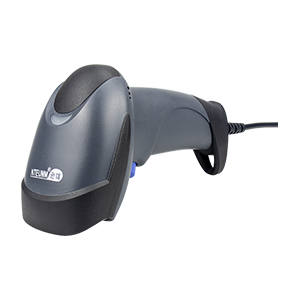
Press and hold the trigger button of the scan engine, the lighting will be activated, and a red lighting line and a red aiming line will appear.
Aim the red aiming line at the center of the barcode, move the scan engine and adjust the distance between it and the barcode to find the best reading distance.
When the success prompt sounds and the red lighting line goes out, the reading is successful, and the scan engine transmits the decoded data to the host.
Note
During the reading process, for the same batch of barcodes, you will find that the distance between the scan engine and the barcode is within a certain range, and the reading success rate will be high. This distance is the optimal reading distance.
Restore Factory Defaults#
Restore Factory Defaults Notice
Scanning the “Restore Factory Settings” setting barcode will restore all properties of the scan engine to the factory default state.
Applicable Scenarios:
There is an error in the scan engine settings, such as the barcode cannot be read.
I have forgotten what settings I have made for the scan engine before, and I do not want to continue to use the previous settings.
Functions that are rarely used are temporarily enabled and need to be restored to the default state after use.

Restore Factory Defaults#
View Firmware Version#
Scan the following “View Firmware Version” setting barcode to view the current scan engine firmware version information.

View Firmware Version#

Get Sys Para (For Internal Use Only!)#
Transmit Setting Barcodes#
You can set whether to send the setting barcode content to the host. After scanning the “Allow sending setting barcode” setting successfully, when scanning the setting barcode, the content of the setting barcode will be sent to the host. After scanning the “Prohibit sending setting barcode” setting successfully, when scanning the setting barcode, the content of the setting barcode will not be sent to the host. The setting barcode is not sent by default.

Enable Transmit Setting Barcodes#

* Disable Transmit Setting Barcodes#
USB Fast Transfer#
This scan engine can set the data transmission speed of the scan engine by scanning the setting barcode. For non-standard USB input used by some Windows devices, such as the USB interface converted through PS/2, the stability and integrity of the data output can be improved by appropriately reducing the scan engine transmission speed. USB fast transmission is turned off by default and the “moderate transmission speed” mode is used.

USB High-Speed Transfer#

USB Medium-Speed Transfer#

* Disable USB Fast Transfer#
Data Transfer Speed#
Users can further set the transfer speed of USB devices.

Fast Transfer Speed#

* Medium Transfer Speed#

Slow Transfer Speed#

Slowest Transfer Speed#
Beeper Settings#
In the default state, the scan engine will emit a beep after successful reading. The user can turn the beep on or off according to needs.

* Enable Beeper#

Disable Beeper#

Medium Volume ##

Low Volume ##
Key Combination#

* Disable Key Combination#

Enable Key Combination#

Key Combination Test Barcode: <SOH>#